v1.5.1 Latest October 22, 2026
If you have not set your free hours yet, your dashboard now tells you and takes you to the page where you pick them.
If your booking page has no free hours, students cannot book you. Your dashboard now shows a clear note at the top with an "Add your hours" button. The note goes away as soon as you add your first hour. Nothing is changed for you, and we never pick hours on your behalf. v1.5.0 October 21, 2026
Pinch to zoom works on every page, small grey text is darker, and screen readers and keyboards get clearer pages.
You can now pinch to zoom on your phone on every page, so small text never stays small. Small grey text on the home page, the blog, the booking pages and tutor profiles is darker and easier to read. Every public page marks its main content, and the comparison tables and sliders in blog posts have proper labels, which helps screen readers and keyboard users. Links inside sentences are underlined, so they stand out without relying on colour. v1.4.0 October 21, 2026
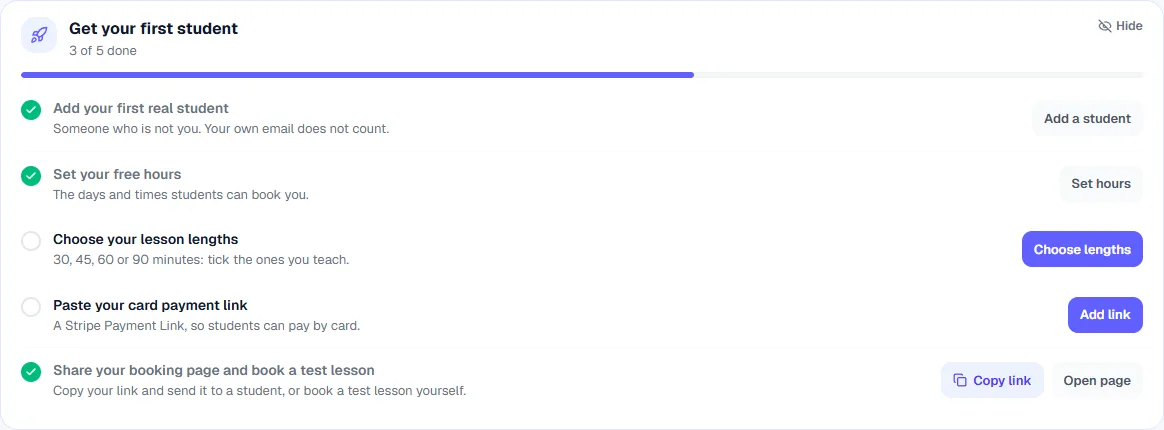
A checklist on your dashboard walks you through the five steps to your first booking, and ticks itself as you go.
The Get your first student card on the tutor dashboard, with three of five steps ticked · Tutafy v1.4.0, sample data A new "Get your first student" card at the top of your dashboard walks you through the five steps that bring in a first booking. The steps are: add a student, set your free hours, choose your lesson lengths, paste your card payment link, and share your booking page. Steps tick themselves as you finish them, and each one has a button that takes you to the right page. Card payment links are part of the Pro plan, so on the Free plan that step is shown but not required. The card goes away when you are done, or sooner if you press Hide. v1.3.0 October 21, 2026
If you are also a student of another tutor, one click takes you to your student view and back.
If you are a tutor and also take lessons from another tutor, a "View as student" button now appears at the top of your dashboard. On the student side, a "Back to tutor" button takes you straight back to your tutor dashboard. The button only shows when your sign-in email has been confirmed as yours, so nobody can use it to look at someone else's lessons. It also works from the phone menu. v1.2.0 October 21, 2026
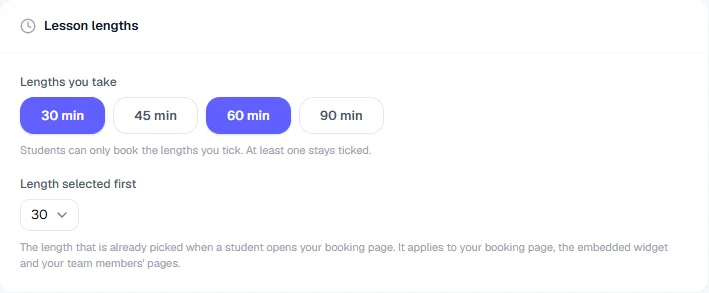
Tick the lesson lengths you teach, and your booking page shows only those.
The Lesson lengths section of Settings, with the 30 min and 60 min buttons switched on · Tutafy v1.2.0, sample data In Settings, on the Booking page tab, tick any of 30, 45, 60 and 90 minutes to say which lessons you teach. Pick the length that is already selected when a student opens your booking page. Your booking page, your team members' pages and the booking widget on your own website show only the lengths you ticked. If you do not choose, students still see all four lengths, with 60 minutes first. Your prices do not change. v1.1.0 October 21, 2026
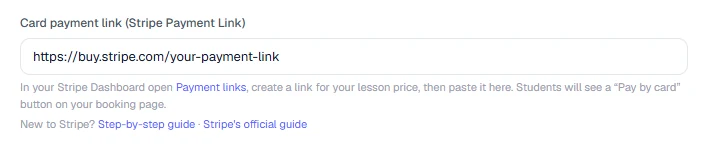
A guide to creating a Stripe Payment Link and pasting it into Tutafy, linked right under the field.
The Card payment link field in Settings, with links to the step-by-step guide underneath · Tutafy v1.1.0, sample data New guide: how to create a Stripe Payment Link and paste it into Tutafy so students see a "Pay by card" button. In Settings, on the Payments tab, the Card payment link field now links to the guide and to Stripe's own instructions. The guide says plainly what one link can and cannot do, so you know the limits before you rely on it. v1.0.0 October 20, 2026
Every page now fits a phone screen, with bigger tap targets and a bottom menu for tutors.
Every page now fits a phone screen: no more sliding sideways to reach a button or a table. Buttons, fields and links are big enough to tap with a thumb, and the text is easy to read without zooming. Tutors get a menu at the bottom of the screen on a phone, with the pages you use most and a "More" sheet for the rest. The settings switches keep their shape on small screens, and the Booking page tab no longer scrolls sideways.